First Time Setup
If you have been setup with access to the AarRigDown app and have a company phone or tablet, the app will automatically install for you.
Android
- Open a web browser app, and browse to aarrigdown.aarsleff.co.uk (opens in a new tab) and click the three dots in the top right corner of the screen
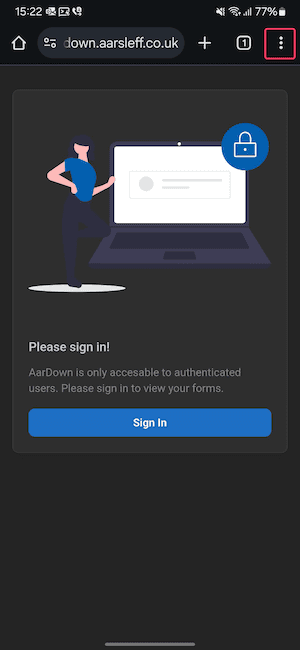
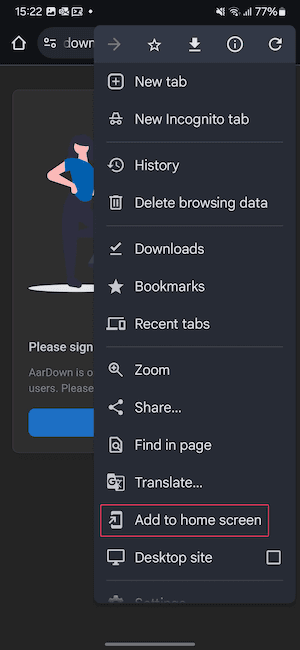
- Click the
Add to home screenbutton.
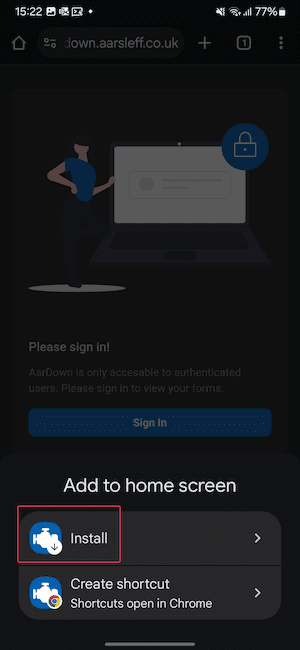
- You may be presented with the following screen. If so, please click
Install
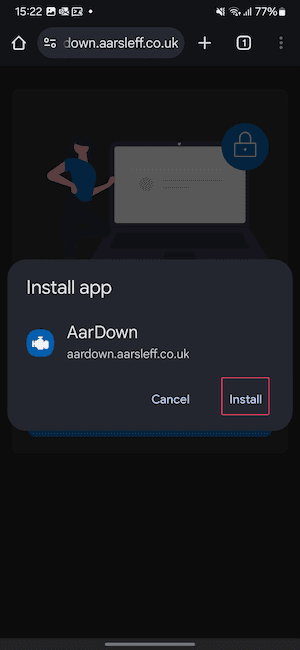
- Then click the
Installbutton in the pop up window
- A notification will appear saying
Adding AarRigDown...This will soon change toAdded to Home Screen - You will then have an app on your home screen called
AarRigDown
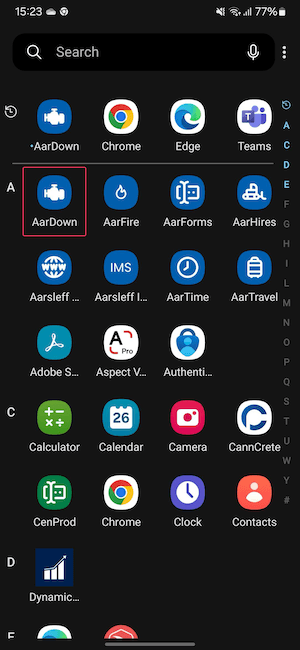
- Opening this new app will give you access to the AarRigDown system
💡
Note. If for any reason you are unable to add the app to your home screen, you can use the app in your browser.
iOS (iPhone / iPad)
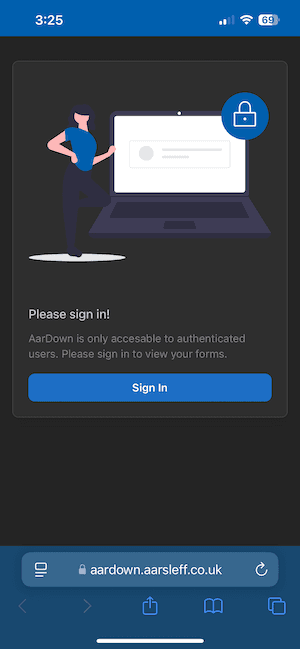
- Open the Safari web browser app, (icon looks like a compass) and browse to aarrigdown.aarsleff.co.uk (opens in a new tab)
- Click the share icon at the bottom of the screen
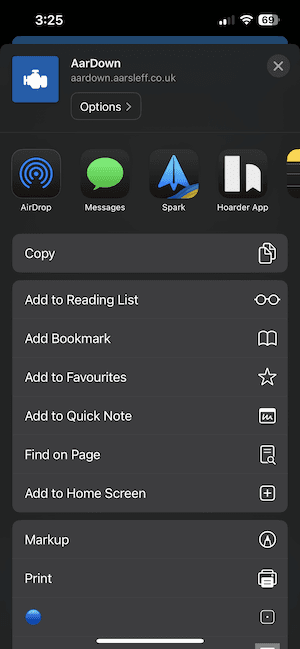
- Then click the
Add to Home Screenbutton. You may have to scroll up to find the icon.
- Now a new screen will appear. No changes are required so please press
Add
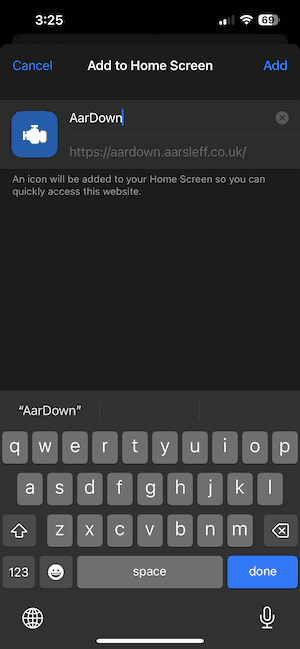
- You will now have an app on your home screen called AarRigDown.
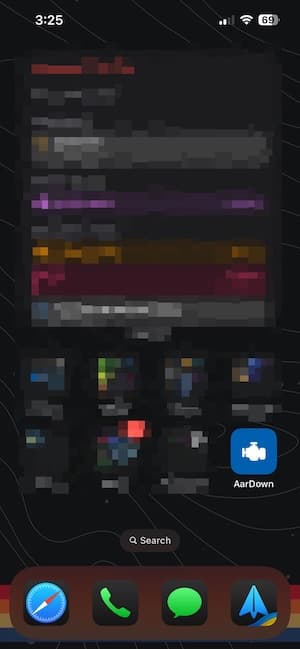
- Oening this new app will give you access to the AarRigDown system.
💡
Note. If for any reason you are unable to add the app to your home screen, you can use the app in your browser.
Mac & PC
For Mac & PC all that is required is for you to open a web browser app, and browse to aarrigdown.aarsleff.co.uk (opens in a new tab). There is no need to add it to your desktop as you do on mobile, however, feel free to bookmark this page.
💡
Please note that the app does not work in Internet Explorer. Therefore, please use Edge, Chrome, Firefox or Safari.